

Appearance
Push Notifications
Push messaging allows you to keep your users up-to-date and re-engage them with your app after periods of inactivity. Upshot.ai makes it simple to send push notifications through the Application Push Notification Service (APNS) and Firebase Cloud Messaging (FCM). Upshot.ai also supports pushing an activity along with the Push.
Overview
The Upshot React Native SDK provides comprehensive push notification capabilities:
- Rich Media Support - Images, videos, audio, and custom layouts
- Deep Linking - In-app navigation and content targeting
- Custom Actions - Interactive buttons
- Cross-Platform - iOS (APNS) and Android (FCM) support
Configuration
iOS Configuration
- Configure your app for push notifications APNS
- Configure your push notifications in Upshot.ai by uploading your .p12 or .p8 file in the Dashboard under the Push Notifications section.
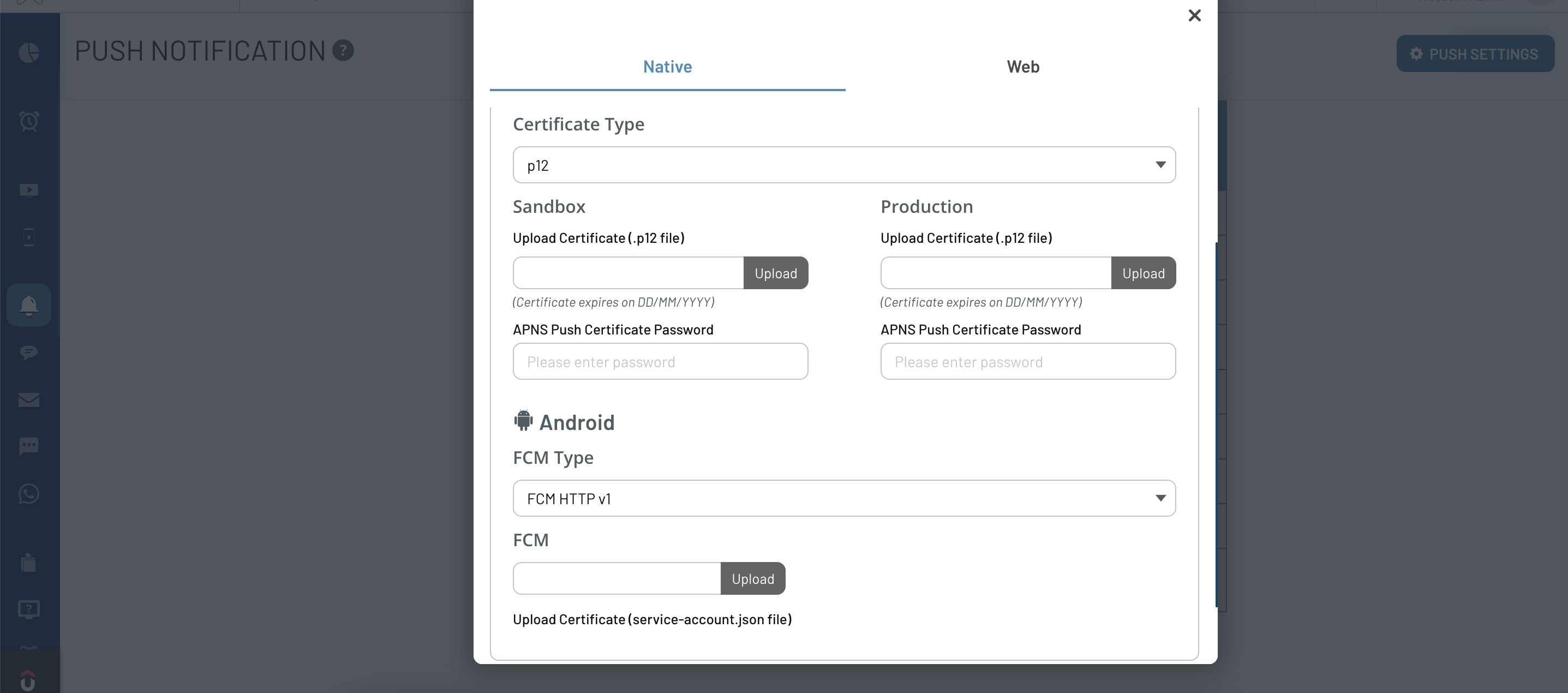
Android Configuration
Configure your app for push notifications in the Firebase console
Enable Android push notifications in Upshot.ai by uploading the FCM service-account.json file in the Dashboard
Basic Setup
Register for Push Notifications
javascript
import Upshot from "react-native-upshotsdk";

// Register for push notifications
Upshot.registerForPush();
typescript
import Upshot from "react-native-upshotsdk";

// Register for push notifications
Upshot.registerForPush();
Handle Device Token And Push Info
Add listeners to handle device tokens and push payloads:
javascript
import Upshot from "react-native-upshotsdk";

// Listen for device token
Upshot.addListener("UpshotPushToken", this.getDeviceToken);

getDeviceToken = (response) => {
  // Handle device token
  console.log("Device Token:", response);
  // You can store this token for server-side push sending
};

// Listen for push notification payload
Upshot.addListener("UpshotPushPayload", this.getPushPayload);

getPushPayload = (response) => {
  // Handle push notification complete payload
  console.log("Push Payload:", response);
};

// Listen for push notification click Info
Upshot.addListener("UpshotOnPushClickInfo", this.getPushClickInfo);

getPushClickInfo = (response) => {
  // Handle push notification click payload
  console.log("Push Payload:", response);
  // Parse the payload and handle deep linking or custom actions
};
typescript
import Upshot from "react-native-upshotsdk";

interface PushTokenResponse {
  token: string;
  platform: "ios" | "android";
}

interface PushPayload {
  [key: string]: any;
  // Common properties
  title?: string;
  body?: string;
  badge?: number;
  sound?: string;
  // Custom data
  custom_data?: any;
}

// Listen for device token
Upshot.addListener("UpshotPushToken", this.getDeviceToken);

getDeviceToken = (response: PushTokenResponse): void => {
  // Handle device token
  console.log("Device Token:", response);
  // You can store this token for server-side push sending
};

// Handle push notification complete payload
Upshot.addListener("UpshotPushPayload", this.getPushPayload);

getPushPayload = (response: PushPayload): void => {
  console.log("Push Payload:", response);
};
// Listen for push notification payload
Upshot.addListener("UpshotOnPushClickInfo", this.getPushClickInfo);

getPushClickInfo = (response: PushPayload): void => {
  // Handle push notification click payload
  console.log("Push Payload:", response);
  // Parse the payload and handle deep linking or custom actions
};
Integration for Existing Push Notification Module
If a push notification module already exists in your project, follow these steps to add support for Upshot.ai notifications as well.
Send Device Token to Upshot.ai
javascript
import Upshot from "react-native-upshotsdk";

// Send device token to Upshot.ai
Upshot.sendDeviceToken(deviceToken);
typescript
import Upshot  from 'react-native-upshotsdk';

// Send device token to Upshot.ai
Upshot.sendDeviceToken(deviceToken: string);
Handle Push Notification Payload
When you receive a push notification, check if it contains the bk key to identify Upshot.ai notifications:
javascript
import Upshot from "react-native-upshotsdk";

// On push notification receive callback
const handlePushNotification = (pushPayload) => {
  // Check if the push notification is from Upshot.ai
  if (pushPayload && pushPayload.bk) {
    // Send the payload to Upshot.ai for tracking
    Upshot.sendPushDataToUpshot(pushPayload);
  }

  // Handle your other push notification logic here
};
typescript
import Upshot from "react-native-upshotsdk";

interface PushNotificationPayload {
  bk?: any; // Upshot.ai identifier
  [key: string]: any;
}

// On push notification receive callback
const handlePushNotification = (pushPayload: PushNotificationPayload): void => {
  // Check if the push notification is from Upshot.ai
  if (pushPayload && pushPayload.bk) {
    // Send the payload to Upshot.ai for tracking
    Upshot.sendPushDataToUpshot(pushPayload);
  }

  // Handle your other push notification logic here
};
Android Setup
For Android push notifications, you need to configure Firebase Cloud Messaging and update your manifest file.
Manifest Configuration
Add the following metadata and services to your android/app/src/main/AndroidManifest.xml:
xml
<!-- Push notification metadata -->
<meta-data android:name="UpshotPushSmallIconColor" android:value="#ff0000"/>
<meta-data android:name="UpshotPushSmallIcon" android:value="notification_icon"/>
<meta-data android:name="UpshotAllowForegroundPush" android:value="@bool/bool_true"/>
<meta-data android:name="UpshotShowOtherPushes" android:value="@bool/bool_true"/>

<!-- Push action receiver metadata -->
<meta-data
    android:name="BkPushActionReceiver"
    android:value="com.upshotreactlibrary.upshot.push.UpshotPushAction"/>

<!-- Push click receiver -->
<receiver android:name="com.upshotreactlibrary.upshot.push.UpshotPushAction">
    <intent-filter>
                <action android:name="com.upshotreactlibrary.upshot.push.UpshotPushAction" />
            </intent-filter>
</receiver>

<!-- Firebase messaging service -->
<service android:name="com.upshotreactlibrary.upshot.push.UpshotFirebaseMessagingService">
    <intent-filter>
        <action android:name="com.google.firebase.MESSAGING_EVENT"/>
    </intent-filter>
</service>
Android Resources
Create a bool_true property in your android/app/src/main/res/values/strings.xml:
xml
<resources>
    <bool name="bool_true">true</bool>
</resources>
Custom Notification Icons
- Small Icon: Add your notification icon as
notification_icon.pngin the appropriate drawable folders - Icon Color: Set the desired color using the
UpshotPushSmallIconColormetadata
iOS Integration
For complete iOS setup including AppDelegate configuration, rich notifications, and service extensions, see the dedicated iOS Integration Guide.
Best Practices
- Request permissions at appropriate time - Don't ask for push permissions immediately on app launch
- Handle token updates properly - Device tokens can change, so always update Upshot.ai with the latest token
- Implement deep linking - Use push payloads to navigate users to specific content
- Test all notification types - Test both simple text notifications and rich media notifications
- Handle foreground notifications - Configure how notifications appear when the app is active
- Validate push setup - Test with the Upshot.ai dashboard before going live
Testing and Debugging
Use the Upshot.ai dashboard to:
- Send test notifications - Test different notification types and payloads
- Preview rich media content - Validate images, videos, and custom layouts
- Check analytics data - Monitor delivery and engagement metrics
- Validate deep links - Ensure navigation works correctly
Troubleshooting
Common issues and solutions:
- Device not receiving notifications: Check token registration and Upshot.ai dashboard configuration
- Rich media not displaying: Verify notification service and content extension setup (iOS)
- Deep links not working: Check URL scheme configuration/key value format and handling
- Analytics not tracking: Ensure push payloads are being sent to Upshot.ai correctly